
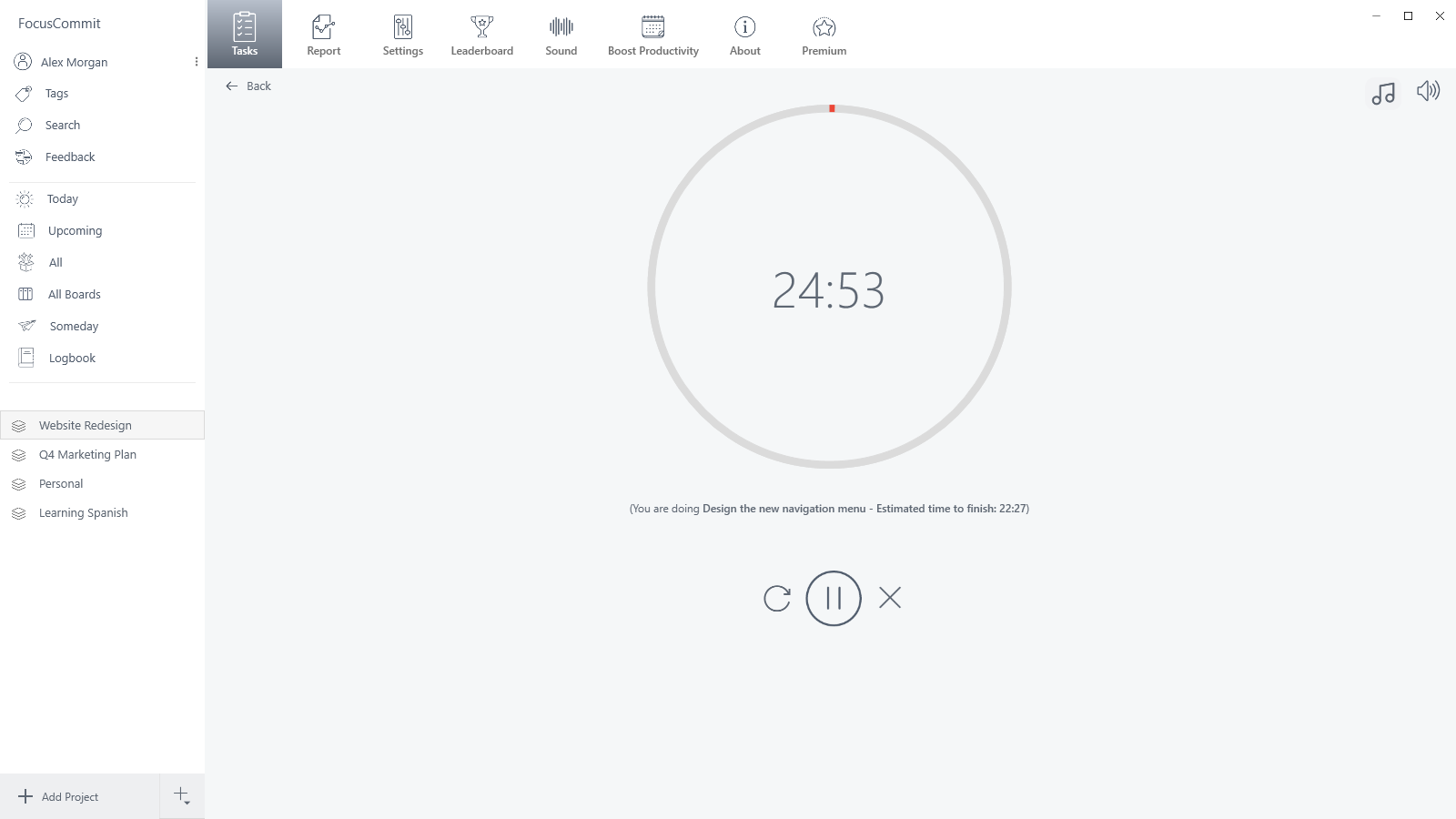
The Pomodoro Technique is simple: work on one task for 25 minutes, take a 5-minute break, and take a longer break after four rounds. FocusCommit runs that cycle for you and records every interval, so at the end of the day you can see where your focus went. This guide shows how to set it up and use it day to day. New to the method itself? Start with our Pomodoro Technique guide.
FocusCommit calls each pomodoro an interval. The rest of this guide uses both words for the same thing.
1. Set your interval and break lengths
Open Settings > Interval. The defaults follow the classic technique:
| Setting | Default |
|---|---|
| Work Interval | 25 minutes |
| Short Break | 5 minutes |
| Long Break | 15 minutes |
| Start Long Break After | 4 intervals |
| Target Intervals | 10 per day |
Prefer longer sessions, such as 50/10 or 52/17? Change Work Interval and Short Break. If the timer still shows the old length afterwards, restart FocusCommit. You can try a rhythm first with the online Pomodoro timer, which has presets for both.
In Settings > General you can also turn on Auto Start Interval and Auto Start Breaks so the next interval or break starts without a click. Both are off by default.
2. Estimate each task in pomodoros
When you add or edit a task, open More settings and fill in Estimated interval: how many pomodoros you think the task needs. The task then shows your progress, for example 2 / 4, and the timer screen shows the time you should finish.
Estimating is part of the original technique. After a few weeks, comparing estimates with the real count shows which kinds of work you underestimate.
3. Plan today’s pomodoros
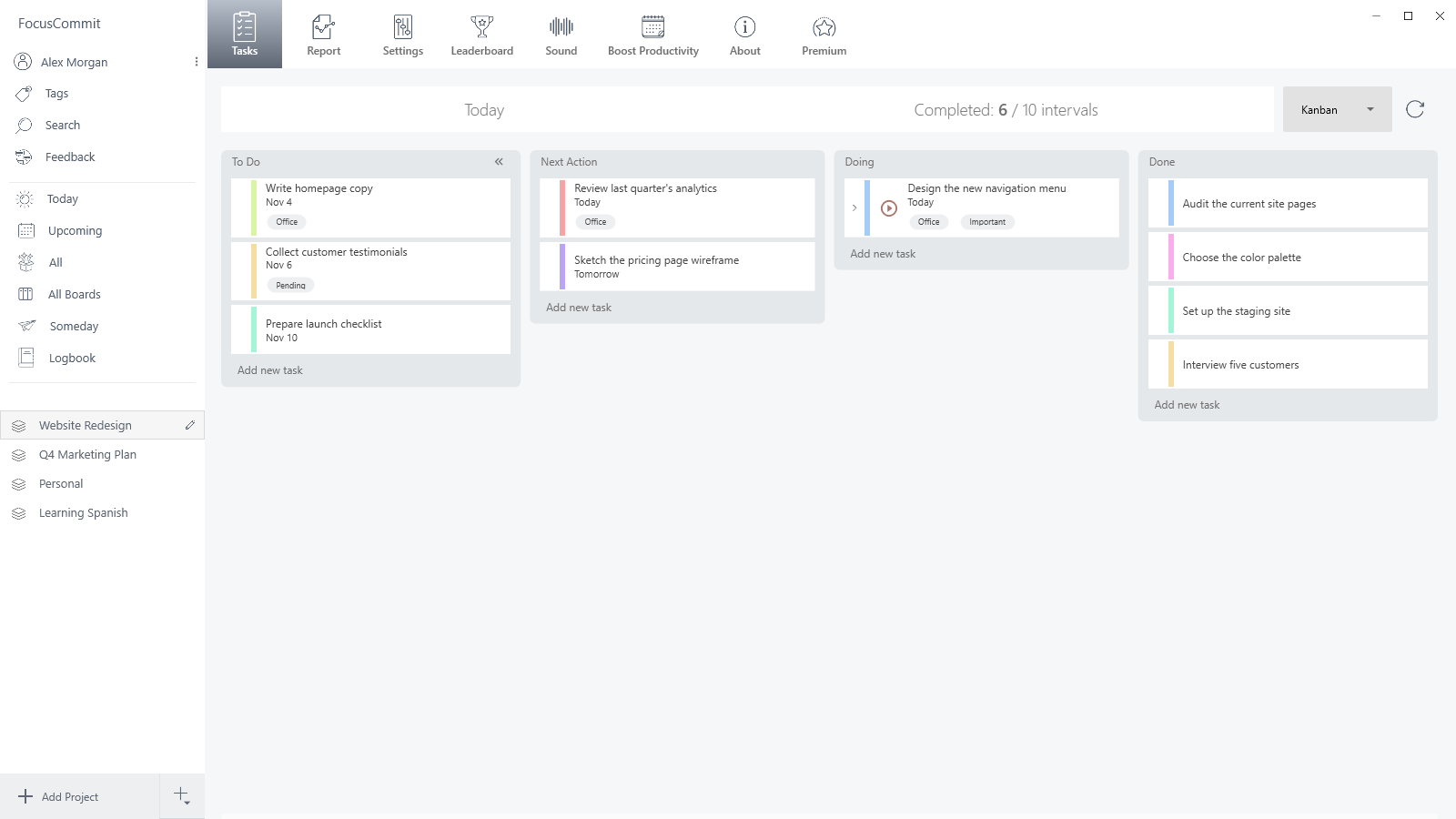
Today in the sidebar lists the tasks due today plus any overdue ones, grouped by project. Pick the tasks you’ll work on and check that their estimates add up to roughly your daily target. Your progress shows at the top of every task screen as Completed: X / Y intervals.
On a Kanban board, keep only the task you’re working on in Doing. Everything else waits in To Do or Next Action.
4. Start a pomodoro and protect it
Click the ▶ button on a task. In Kanban, the button appears only on cards in the Doing column, so drag the card there first.
Then switch to your work. A small timer floats above your other windows while the interval runs. A few things help keep the pomodoro intact:
- Background sounds (Premium): the music-note button on the timer screen mixes seven sounds: Water Drops, Leaves, Seaside, Thunderstorm, Forest, Wind and Rain, each with its own volume.
- Music control: Auto-pause music on focus and Auto-resume music on break in Settings pause your music player during the interval.
- Interruptions: a pomodoro is all or nothing. An interval counts only when the countdown reaches zero, so if you have to stop, cancel it with ✕ and start a fresh one later.
5. Take the break
When the interval ends, the timer switches to your break length. Press ▶ to start it, then step away from the screen.
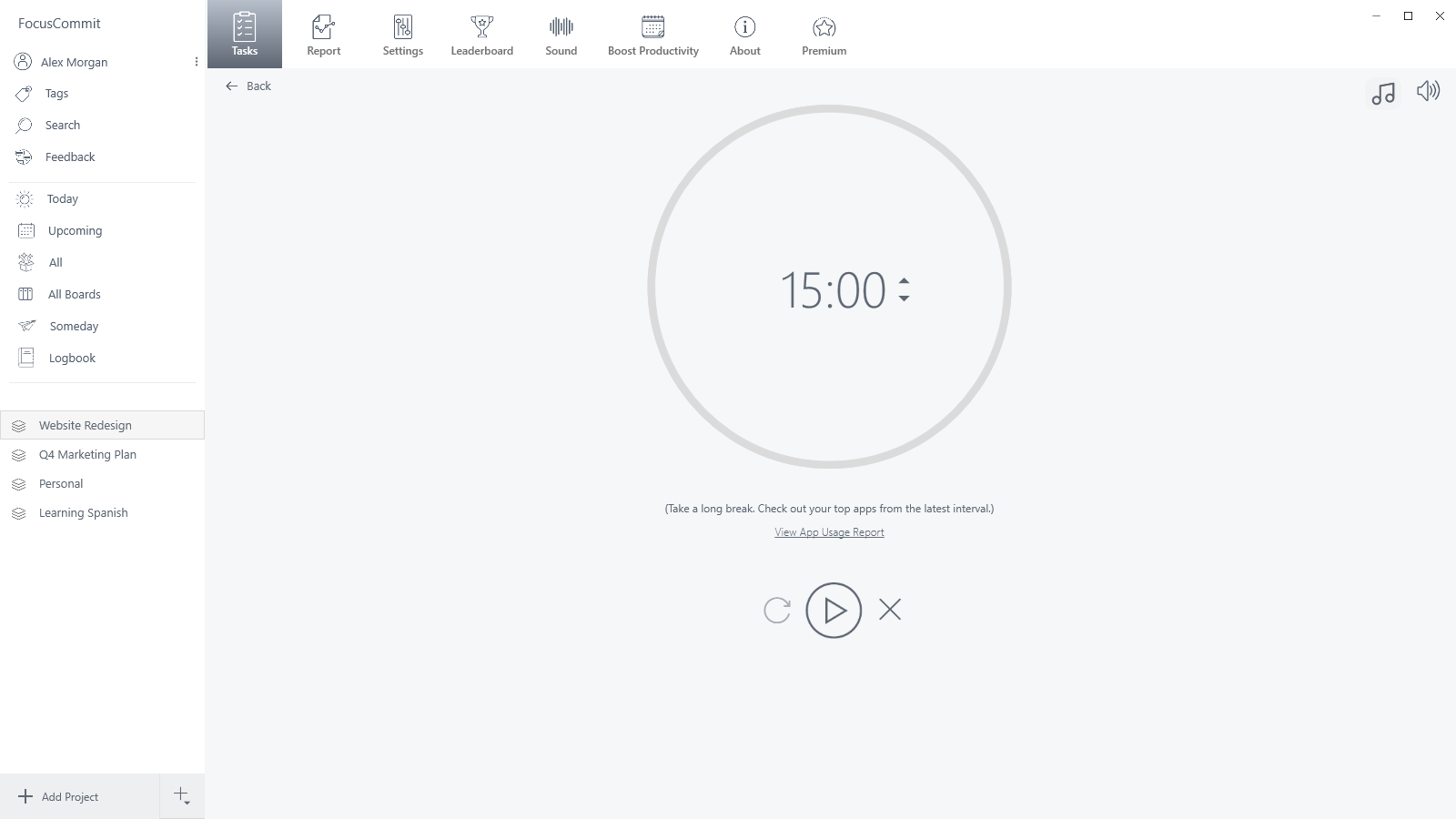
The long break comes after every fourth interval on the same task that day. If you switch tasks between intervals, the count starts again for the new task.
The break screen can also show which apps you used during the interval. Turn on Display App Usage Report in Settings > General. The report stays on your PC; the top two apps are free and the full list is Premium.
6. Review your pomodoros
The Report tab shows intervals this week, focus time today and this week, and your total focus time. Choose Daily, Last 7 days, Last 30 days or Custom, and filter by project. The charts split your minutes by task and by project.
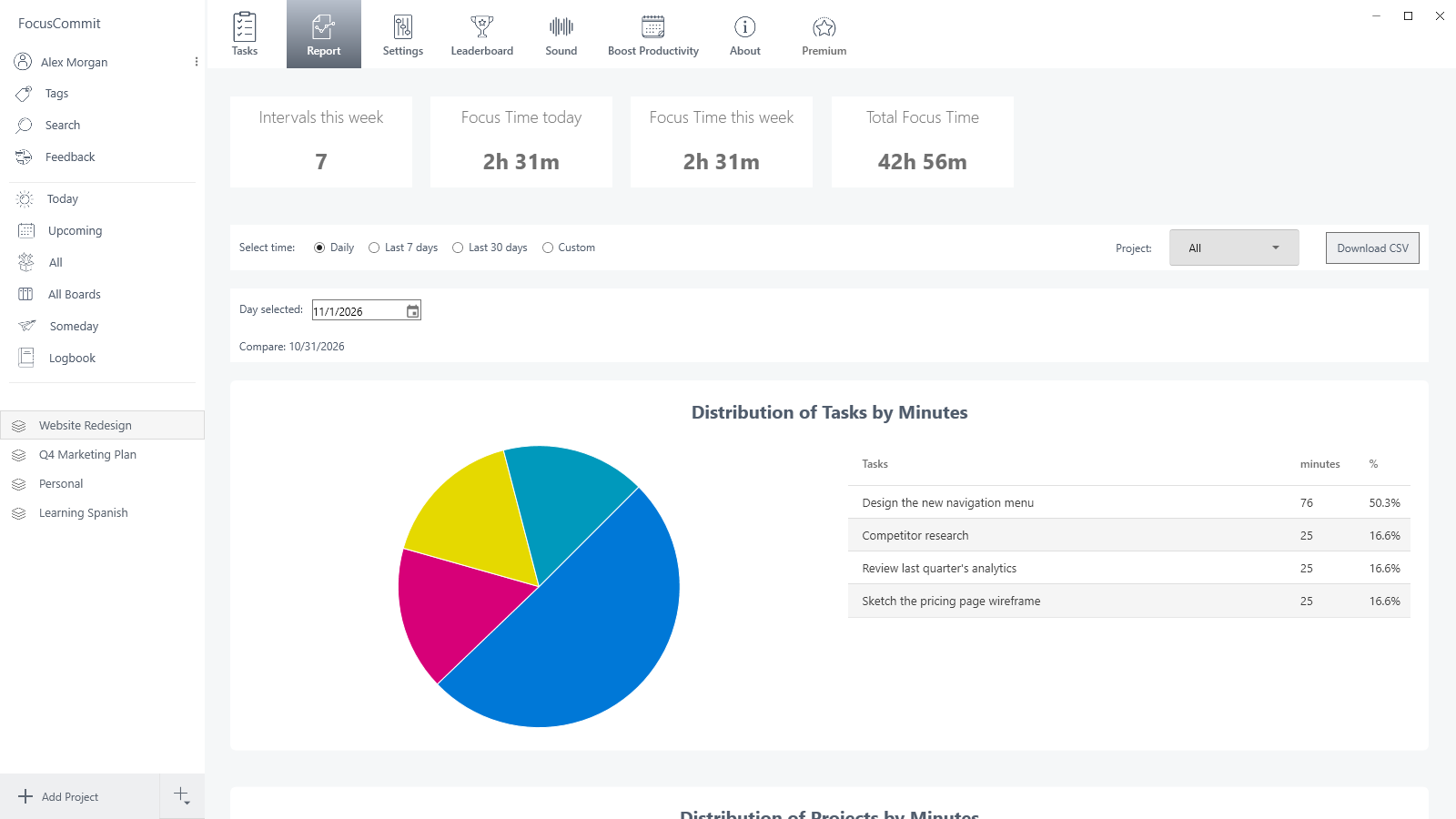
The week starts on Sunday. Premium adds Download CSV (task, project, date and duration of every interval) and syncs your interval history to your other devices.
What’s free and what’s Premium
- Free: the timer, short and long breaks, the mini timer, the daily target, estimates and the Report charts.
- Premium: background sounds, CSV export, the full App Usage Report, the Alarm settings and interval history on every device. See pricing.
Just installed FocusCommit? The getting started guide covers projects, tasks and the main window.
Frequently asked questions
Is the Pomodoro timer in FocusCommit free?
Yes. The timer, short and long breaks, the mini timer, estimates and the Report charts are free. Background sounds and CSV export are Premium.
Why didn't I get a long break after four intervals?
FocusCommit counts intervals per task per day. The long break comes after the fourth interval on the same task, so switching tasks starts the count again.
Does a cancelled pomodoro count?
No. An interval is saved only when the countdown reaches zero. Cancelling throws it away, as the Pomodoro Technique recommends for an interrupted pomodoro.
Can I use 50/10 or 52/17 instead of 25/5?
Yes. Change Work Interval and Short Break in Settings > Interval. If the timer still shows the old length, restart FocusCommit.